
-
- Dedicated Servers
- Dedicated Server Hosting
- Managed Dedicated Servers
- Hyper-V Servers
- Hyper-V Hosting
- Managed Hyper-V Hosting
- What is Microsoft Hyper-V?
-
- Green Technology
- Green Hosting Technology
- Green Data Centre
Configuring POP Email in Microsoft Outlook 2016This article shows you how to setup Microsoft Outlook 2016 to work with your Web Wiz email account using a Secure SSL/TLS Encrypted Connection. It focuses on Microsoft Outlook 2016 but these settings are similar for other versions of Outlook. 1. In Microsoft Outlook 2016, from the File menu, select Add Account 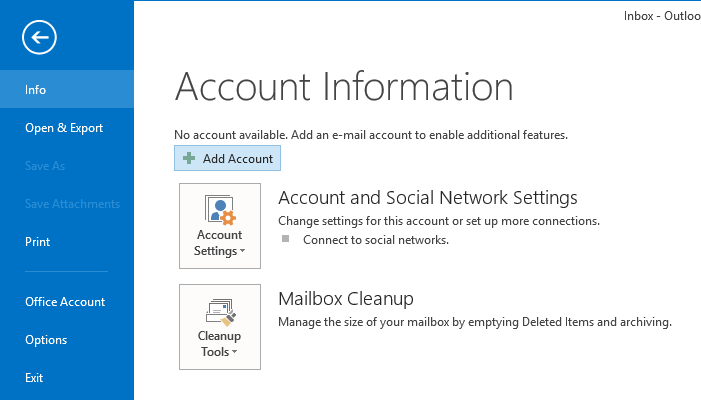 2. On the Connect Outlook to Office 365 splash screen select Connect to a different account  3. On the Auto Account Setup window select Manually configure server settings or additional server type and then click Next  4. For the Choose Service select POP or IMAP and then click Next 
5. On the Internet E-mail Settings (POP3) window, enter your information as follows:
 6. On the Internet E-mail Settings go to the Outgoing Server tab 7. Select My outgoing (SMTP) requires authentication and leave the default option of Use same settings as my incoming mail server  8. Go to the Advanced tab, and enter the information below:
 9. Back on the Internet E-mail Settings window click Next  10. Outlook will now test your settings and if they are correct you will see the screen below, if they are not correct go back and correct your settings  11. Click Finish  Web Wiz do not endorse or directly support third-party products and only give this information as a guideline for our customers' mailboxes hosted on our servers. Back To Hosting Knowledgebase Menu |
Fully managed or self-managed, from our own solar powered data centre.
Web Wiz® is the trading name of Web Wiz Ltd. Company registration No. 05977755. Registered in England and Wales.
Registered office: Web Wiz Ltd, Unit 18, The Glenmore Centre, Fancy Road, Poole, Dorset, BH12 4FB, UK.
Prices exclude VAT at 20% unless otherwise stated. VAT No. GB988999105 - $, €, prices shown as a guideline only.
Copyright ©2001-2026 Web Wiz® Ltd. All rights reserved.